
Automate Your Photography Workflow: From Lightroom to Social Media in One Click
Learn how photographers can automate their social media publishing. Export from Lightroom, Capture One, or Apple Photos and watch your images appear in Statuz automatically.
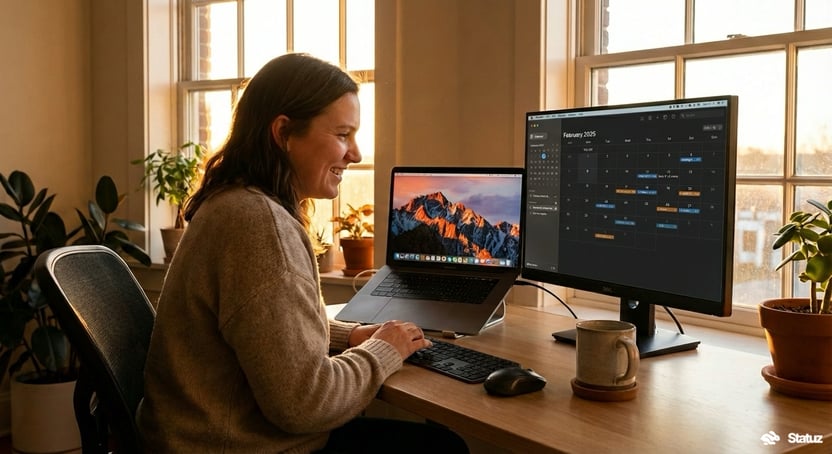
The best photo you've ever taken is worthless if nobody sees it. Yet photographers spend hours perfecting their craft, only to waste precious minutes on the mundane task of getting images from Lightroom to social media.
What if your photos could reach your audience the moment you hit export? No browser tabs. No manual uploads. No friction between creation and sharing.
That future is here. With native macOS automation and Statuz, your Lightroom exports can automatically appear in a beautiful composer, ready to post across X, Bluesky, and Mastodon—all without touching a browser.
The Photography Workflow Problem
Every photographer knows this dance:
Steps 5-10 are pure friction. They break your creative flow, consume time that could be spent shooting, and often lead to photos languishing in export folders, never shared at all.
The math is brutal: If you post twice daily across three platforms, that's roughly 30-45 minutes daily on uploads alone. That's 15+ hours monthly of repetitive clicking.
Zero-Click Publishing
Statuz's Lightroom Automation uses native macOS Folder Actions to eliminate steps 5-10 entirely. Here's the new workflow:
No app switching. No browser tabs. No mental overhead.
The secret is macOS Folder Actions—a powerful but underused feature that watches folders and triggers scripts when files arrive. Combined with Statuz's URL Scheme API, we can build workflows that feel like magic.
Setting Up Lightroom Automation
The setup takes five minutes. Once configured, you'll never think about it again.
Step 1: Install the Script
Download our ready-made script and install it:
# Create the folder (doesn't exist on clean macOS)
mkdir -p ~/Library/Scripts/"Folder Action Scripts"

# Download and install
curl -L -o ~/Library/Scripts/"Folder Action Scripts"/Lightroom-to-Statuz.scpt \
  https://github.com/statuz-app/examples/raw/main/lightroom/Lightroom-to-Statuz.scpt
Or download manually from GitHub if you prefer to inspect the code first.
Step 2: Create Your Export Folder
mkdir -p ~/Desktop/SocialExport
Put it anywhere you like—Desktop is just convenient. Many photographers use a subfolder within their Lightroom catalog.
Step 3: Attach the Folder Action
If you don't see Folder Actions Setup in the context menu, open it directly:
open "/System/Library/CoreServices/Applications/Folder Actions Setup.app"
Step 4: Export and Watch the Magic
In Lightroom:
Statuz opens automatically with your images loaded, ready to add captions and post.
For complete setup instructions, troubleshooting, and advanced configurations, see our full Lightroom Automation documentation.
How It Works Under the Hood
The magic happens through macOS Folder Actions and Statuz's URL Scheme. When files land in your export folder, the script:
All your images appear in a single composer, ready to post across platforms.
-- Key insight: ONE compose call with multiple images
-- NOT a loop that opens multiple composers
open location "statuz://compose?media=" & allFilePaths
This batching is crucial. Export 4 photos from Lightroom, and they all appear in one post—exactly how social platforms expect multi-image galleries.
Beyond Lightroom: Works With Any App
The automation isn't Lightroom-specific. It triggers whenever files hit your watched folder, making it perfect for:
Capture One
Export sessions directly to your social folder. Capture One's powerful color grading, immediately shared.
Final Cut Pro
Video exports work too. MP4 and MOV files are automatically detected and loaded into Statuz's composer.
Screenshot Tools
Configure your screenshot app to save to the export folder. Perfect for developers sharing code snippets or designers showing work-in-progress.
Any Export
Really, anything that can save to a folder works. Photoshop exports. Affinity Photo. GIMP. Figma exports. The folder doesn't care where files come from.
Apple Photos
Bonus: Apple Photos users don't need folder actions at all! Statuz has a native Share Extension. Just select photos → Edit With → choose "Statuz". Your images open in the composer instantly, no folder setup required.
But if you need a cross device workflow, using the folder action is still the best way to go.
Workflow Variations for Power Users
The basic setup covers most needs, but power users can customize further.
Auto-Add Hashtags
Edit the script to include standard hashtags:
open location "statuz://compose?text=%23Photography%20%23PhotoOfTheDay&media=" & mediaParam
Now every export arrives with your go-to hashtags pre-filled.
Save as Draft
For photographers who review before posting:
open location "statuz://compose?draft=true&media=" & mediaParam
Photos land in your drafts queue instead of opening the composer immediately. Review and post when you're ready.
Separate Folders for Different Workflows
Create multiple export folders with different scripts:
Each folder can have its own automation behavior.
Why Photographers Choose Statuz
We built this automation because photographers asked for it. A photography professional recently discovered Statuz and called it "the best client" for scriptable social media:
"Most clients aren't scriptable at all. Others don't support 'open with' for images. Statuz works with AppleScript automation—exactly what I need for my Lightroom to social media workflow." — Photography Professional, MacScripter.net
Other photographers using the automation:
"I kept putting off posting because the upload process felt like a chore. Now it just... happens. Export, caption, done. I'm actually consistent for once." — Wildlife photographer
"The batch import sold me. I do a lot of before/after edits and having both images land in one composer automatically is exactly what I needed." — Retoucher
This is exactly the feedback we hear repeatedly: photographers want tools that integrate with their existing workflow, not apps that force them into a browser.
The Mac-Native Advantage
This workflow is possible because Statuz is built as a true Mac-native app. Web-based tools can't integrate with macOS Folder Actions or respond to URL schemes with the same precision.
Benefits photographers notice immediately:
Compare this to web-based workflows: Open browser → Navigate to scheduler → Wait for page load → Upload each image → Wait for processing → Write caption → Repeat for each platform.
The native approach respects your time and your creative flow.
Combining With Other Automations
Lightroom export automation is just one piece of a larger puzzle. Statuz's Automation Guide covers additional workflows:
Photographers building content strategies can combine these for powerful workflows:
# Morning routine: Schedule the day's posts
~/scripts/schedule-daily-content.sh

# During shoots: Export → Auto-compose
# Lightroom export to watched folder

# Evening: Review drafts and schedule
# Open Statuz calendar view
Getting Started Today
The entire setup takes five minutes:
For detailed instructions, troubleshooting tips, and advanced customizations:
Beyond Posting: Building Your Photography Brand
Automation isn't just about saving time—it's about consistency. Photographers who post regularly build larger audiences. The easier posting becomes, the more you'll do it.
Consider this strategy:
Morning: Export yesterday's best shot → Automatic compose → Quick caption → Post
Midday: Export behind-the-scenes from morning shoot → Save as draft
Evening: Review drafts → Schedule for optimal posting times
With friction removed, consistent posting becomes effortless. Your photography reaches more people, and your brand grows.
Ready to transform your photography workflow? Download Statuz and set up Lightroom automation in the next five minutes. Your photos deserve to be seen.
Already using Statuz? Send us your feeback from within the app. Also make sure to review Statuz and get a gift 🎁